1. Check Current Permissions: Before making any changes, it’s a good idea to check the current permissions of the file using the ls -l command:
ls -l /var/log/auth.logthe output like below
-rw-r----- 1 syslog adm 3.3M Feb 20 09:57 /var/log/auth.logThe output you provided is the result of running the ls -l command on the file /var/log/auth.log. This command displays detailed information about the file, including its permissions, ownership, size, and modification date. Here’s a breakdown of each part:
-rw-r-----: This part represents the file permissions. Each character represents a different permission or attribute:- The first character (
-) indicates that this is a regular file. - The next three characters (
rw-) represent the permissions for the owner of the file. In this case, the owner has read (r) and write (w) permissions but does not have execute (x) permission. - The next three characters (
r--) represent the permissions for the group that owns the file. In this case, the group has read (r) permission but does not have write (w) or execute (x) permission. - The last three characters (
---) represent the permissions for others (users who are not the owner or part of the group). In this case, others do not have any permissions (---).
- The first character (
1: This number indicates the number of hard links to the file. In this case, there is only one hard link.syslog: This is the name of the user (owner) who owns the file.adm: This is the name of the group that owns the file.3.3M: This is the size of the file. In this case, the file size is approximately 3.3 megabytes.Feb 20 09:57: This is the date and time when the file was last modified./var/log/auth.log: This is the full path to the file.
In summary, the output -rw-r----- 1 syslog adm 3.3M Feb 20 09:57 /var/log/auth.log indicates that the file /var/log/auth.log is a regular file with read and write permissions for the owner, read permission for the group, and no permissions for others. The file is owned by the user “syslog” and the group “adm”. It is approximately 3.3 megabytes in size and was last modified on February 20th at 09:57.
2. Add user zabbix to adm group, make sure it can read the /var/log/auth.log file
sudo usermod -aG adm zabbix3. Check the groups of the zabbix user
groups zabbix4. Test Access: After making the changes, you can test if the “zabbix” user (or any other user) can access the file by trying to read it:
sudo -u zabbix cat /var/log/auth.log5. Restart Zabbix Agent (if needed): If you made changes that affect the Zabbix Agent’s ability to access the file, you may need to restart the Zabbix Agent for the changes to take effect:
sudo systemctl restart zabbix-agent6. Create a new Zabbix item with the following settings
- Name:
SSH Login - Type: Zabbix agent (active)
- Key:
log[/var/log/auth.log,"Accepted .*",,,skip,\0] - Type of information: Log
- Log time format: pppppp:yyyyMMdd:hhmmss
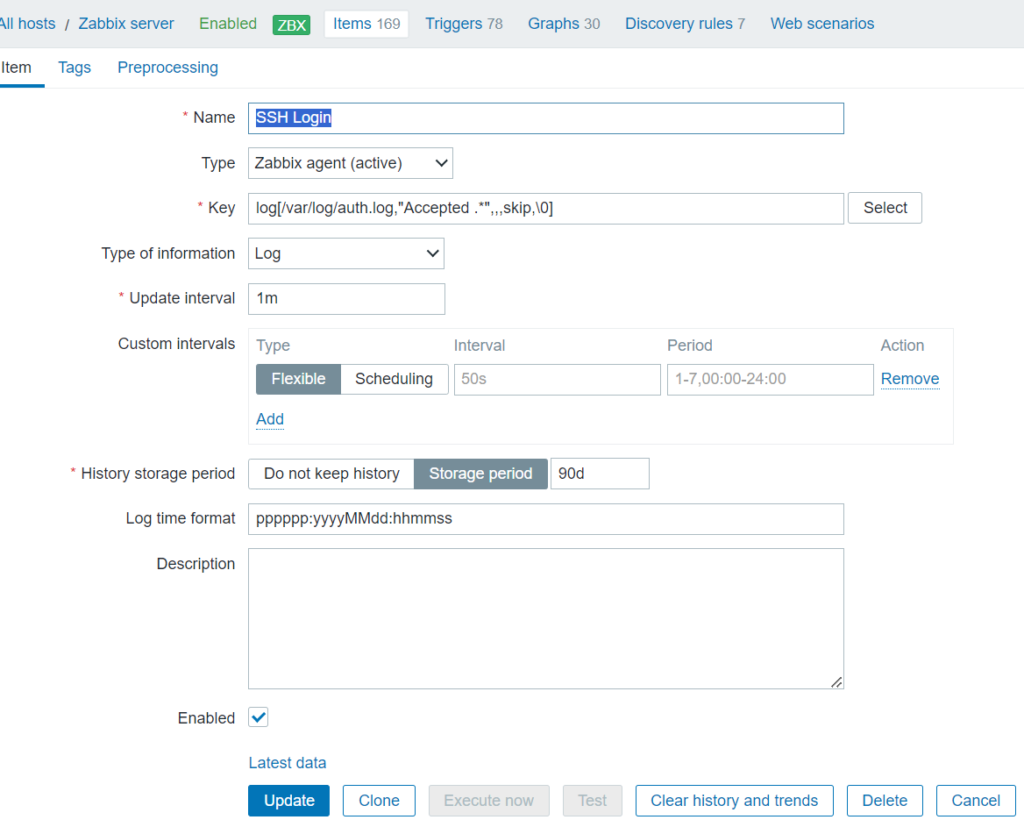
7. Configure a trigger for your item:
- Name:
Successful SSH authentication on {HOST.NAME} - Expression:
length(last(/Zabbix server/log[/var/log/auth.log,"Accepted .",,,skip,\0]))>0 and nodata(/Zabbix server/log[/var/log/auth.log,"Accepted .",,,skip,\0],5m)=0

If authentication with a password or SSH key is successful, you will receive a message containing the username and IP address from which the SSH connection was established.